

 Bonani DOSH, Dhaka - 1230, Bangladesh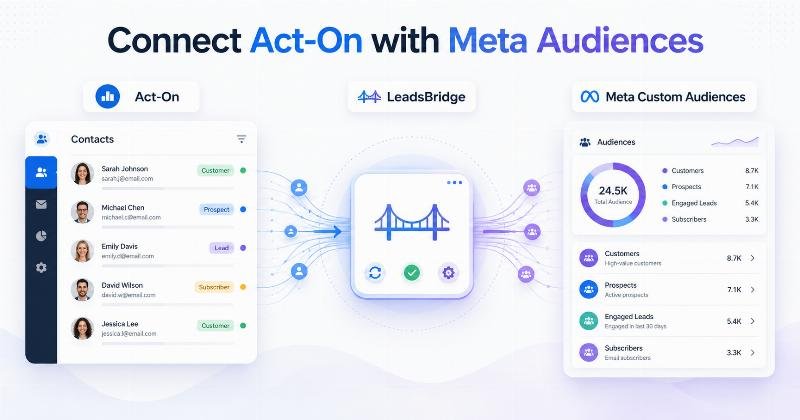

Act-On Audience Targeting by LeadsBridge: Connect Act-On with Meta Custom Audiences
Managing customer data in one platform and advertising audiences in another can create a significant amount of repetitive work. Marketing teams may need to export contacts, clean spreadsheets, format customer identifiers, upload lists to Meta, remove outdated records, and repeat the process whenever their Act-On segments change.
Act-On Audience Targeting by LeadsBridge provides a more automated way to connect selected Act-On contacts with Meta Custom Audiences.
Instead of manually uploading a new customer list for every campaign, marketers can use LeadsBridge as the connection layer between Act-On and Meta. The integration can help transfer selected contact information, map supported customer identifiers, apply audience filters, test the data flow, and regularly update a Meta Custom Audience.
This guide explains how the integration works, what you need before starting, which audience strategies you can create, how free trials and paid plans differ, and what privacy responsibilities businesses should consider.
What is Act-On Audience Targeting by LeadsBridge?
Act-On Audience Targeting by LeadsBridge is an integration workflow that connects Act-On contact data with Meta or Facebook Custom Audiences.
In this setup:
-
Act-On works as the source of your contacts, lists, or marketing segments.
-
LeadsBridge connects the two platforms and manages the data flow.
-
Meta Custom Audiences works as the advertising destination.
The basic workflow looks like this:
Act-On contact segment → LeadsBridge → Meta Custom Audience → Meta advertising campaign
The integration is useful because Act-On’s current help documentation does not list a direct Facebook integration. LeadsBridge therefore provides a third-party method for moving selected Act-On audience data into Meta’s advertising ecosystem.
LeadsBridge’s official integration guide currently allows users to select Act-On as the source and Facebook Custom Audiences as the destination. The setup includes account authorization, ad-account selection, synchronization settings, simulation, field mapping, optional filters, and bridge publishing.
What is Act-On?
Act-On is a marketing automation platform businesses can use to manage contacts, create marketing segments, run email campaigns, build automated programs, score leads, and track engagement.
Depending on how a business configures the platform, Act-On may contain information such as:
-
Contact details
-
Email engagement
-
Form submissions
-
Website activity
-
Lead scores
-
Marketing-qualified lead status
-
Customer lifecycle stage
-
Product or service interests
-
Campaign membership
-
Regional or demographic fields
This information can help marketing teams create more relevant segments. However, a contact segment stored inside Act-On does not automatically become an advertising audience inside Meta.
A separate integration, manual upload process, or custom API workflow is normally required to activate that data for advertising.
What is LeadsBridge?
LeadsBridge is an advertising automation and integration platform designed to move leads, contacts, audience information, and conversion data between marketing platforms.
It works as a bridge between systems that may not have a suitable native integration.
For this particular workflow, LeadsBridge does not replace Act-On or Meta Ads Manager. Instead, it performs the connection between them.
| Platform | Primary Role |
| Act-On | Stores contacts, engagement data, lists, and marketing segments |
| LeadsBridge | Transfers and synchronizes selected data between platforms |
| Meta Ads Manager | Creates audiences and uses them in advertising campaigns |
LeadsBridge can reduce the need to repeatedly export spreadsheets from one platform and upload them to another.
What are Meta Custom Audiences?
Meta Custom Audiences allow advertisers to create audience groups based on existing customer data or previous interactions with a business.
Common sources for Meta Custom Audiences may include:
-
Customer lists
-
Website visitors
-
Mobile app activity
-
Facebook and Instagram engagement
-
Video engagement
-
Lead form activity
-
Offline customer activity
In an Act-On and LeadsBridge workflow, the most relevant format is usually a customer-list Custom Audience.
Meta attempts to match customer identifiers, such as email addresses or phone numbers, with accounts using its technologies. Not every Act-On contact will necessarily be matched, so the final audience available in Meta may be smaller than the original source list.
The audience can then be used for retargeting, customer communication, exclusions, re-engagement, or as a source for other eligible audience strategies.
How does the Act-On and Meta integration work?
The integration moves selected Act-On contact information through LeadsBridge and into a Meta Custom Audience.
1. Act-On works as the source
You begin with contacts, lists, or segments stored in Act-On. These records should already be organized according to the campaign you want to run.
For example, you might create an Act-On segment containing people who:
-
Requested a product demonstration
-
Submitted a consultation form
-
Reached a specific lead score
-
Opened several marketing emails
-
Visited an important service page
-
Became an existing customer
2. LeadsBridge creates the connection
Inside LeadsBridge, you create a new bridge and select Act-On as the source platform.
You then authorize LeadsBridge to access the relevant Act-On information.
3. Meta Custom Audiences becomes the destination
Next, you select Facebook Custom Audiences as the destination and authorize the relevant Meta account.
It is important to select the correct:
-
Meta Business Portfolio
-
Advertising account
-
Custom Audience
-
Account permissions
4. Customer fields are mapped
LeadsBridge allows the available Act-On fields to be matched with supported Custom Audience identifiers.
Possible identifiers may include:
-
Email address
-
Phone number
-
First name
-
Last name
-
City
-
State or region
-
Postal code
-
Country
-
Date of birth
-
Gender
The available fields can vary according to the platforms, account configuration, integration version, and current Meta requirements.
5. Filters can control which contacts are sent
An optional filter can be used to synchronize only contacts that meet selected conditions.
For example, you might configure the bridge to include contacts only when:
-
Lead score is greater than a defined number
-
Lifecycle stage equals marketing-qualified lead
-
Country equals United States
-
Customer status equals active
-
Consent status allows advertising use
6. The integration is tested
LeadsBridge provides a simulation option that can process source data and generate a report without sending it to the advertising platform.
A bridge published with simulation still enabled does not send live audience data. Simulation must be disabled when the bridge is ready to operate live.
7. The bridge is published
After reviewing the source, destination, mappings, filters, and synchronization settings, the bridge can be saved and published.
Meta then processes the transferred information and attempts to match the contacts with eligible accounts.
Why connect Act-On with Meta Custom Audiences?
The main benefit is not simply moving contacts between two platforms. The real value comes from activating Act-On marketing segments inside Meta advertising campaigns.
Reduce repetitive CSV work
Without an integration, teams may repeatedly export a list from Act-On, clean the file, check its formatting, upload it to Meta, and replace or update the audience.
Automating part of this process can reduce repetitive work and make audience management easier.
Keep audiences more current
A manually uploaded list begins becoming outdated when contacts change status.
For example:
-
A lead may become a customer.
-
A customer may cancel a subscription.
-
A contact may unsubscribe.
-
A prospect may reach a higher lead score.
-
An invalid email address may be removed.
Regular synchronization can help the advertising audience reflect the current source segment more closely.
Improve funnel-based audience organization
Act-On contacts can be separated according to funnel stage and sent to different Meta audiences.
| Act-On Segment | Meta Audience Purpose | Suggested Campaign |
| New leads | Build awareness and trust | Educational content or brand introduction |
| Marketing-qualified leads | Support consideration | Case studies, comparisons, or webinar promotion |
| Demo-request leads | Retarget high-intent prospects | Product proof, consultation, or decision-stage offer |
| Existing customers | Customer communication | Upgrade, cross-sell, retention, or education |
| Existing customers | Acquisition exclusion | Exclude from new-customer campaigns |
| Inactive leads | Re-engagement | New resource, updated offer, or event invitation |
Create more accurate exclusions
Audience targeting is not only about deciding who should see an advertisement. It is also about deciding who should not see it.
Existing customers can be placed in a separate audience and excluded from campaigns designed only for new customer acquisition.
This can reduce irrelevant messaging and make campaign structure easier to manage.
Coordinate email and paid social campaigns
A lead may ignore an email but notice a related advertisement on Facebook or Instagram. Similarly, someone who engages with an email campaign may benefit from seeing supporting proof, a case study, or a product demonstration through paid social.
Connecting Act-On segments with Meta can help teams coordinate their messaging across channels.
Practical Act-On audience targeting strategies
High-intent lead retargeting
Create a segment containing contacts who have demonstrated strong buying intent.
Possible signals include:
-
Demo request
-
Consultation request
-
Pricing-page visit
-
Repeated product-page visits
-
High lead score
-
Multiple email clicks
These contacts can receive decision-stage advertisements featuring customer proof, product benefits, common objections, implementation information, or a consultation call to action.
Marketing-qualified lead campaigns
An Act-On marketing-qualified lead segment can be connected to Meta for more focused advertising.
Instead of showing introductory awareness advertisements, the campaign can present deeper information such as:
-
Case studies
-
Comparison guides
-
Webinars
-
Product demonstrations
-
Industry-specific solutions
Dormant lead re-engagement
Some contacts may have shown interest previously but stopped engaging with email campaigns.
A separate dormant-lead audience can be used for a limited re-engagement campaign featuring new content, an updated solution, a relevant event, or a refreshed offer.
Existing customer campaigns
Existing customers can be separated from prospects and shown advertisements related to:
-
Product education
-
New features
-
Account upgrades
-
Complementary services
-
Renewals
-
Customer events
Customer exclusion audiences
A synchronized customer audience can also be excluded from prospecting campaigns.
For example, a software company promoting a “Start Your First Subscription” offer should normally exclude people who already have an active subscription.
Regional audience segmentation
Businesses operating in multiple regions may create separate Act-On segments for countries, territories, service locations, or sales regions.
This makes it easier to align advertising language, service availability, local offers, and regional landing pages.
How to connect Act-On with Meta through LeadsBridge
Step 1: Prepare your Act-On segment
Define exactly which contacts should be included.
Avoid starting with the entire database unless there is a valid campaign reason to do so.
Before continuing, check:
-
Contact quality
-
Consent or lawful-use status
-
Unsubscribe status
-
Duplicate records
-
Invalid email addresses
-
Phone-number formatting
-
Customer lifecycle stage
Step 2: Create a new bridge
Log in to LeadsBridge and select the option to create a new bridge.
Step 3: Select Act-On as the source
Choose Act-On as the source application and connect your account.
Use an account with the permissions required to access the contacts or segments you plan to synchronize.
Step 4: Select Facebook Custom Audiences as the destination
Choose Facebook Custom Audiences as the destination and authorize the appropriate Meta account.
Step 5: Select the correct ad account
Review the selected Business Portfolio and advertising account carefully. Agencies and businesses managing multiple ad accounts can easily select the wrong destination if naming is unclear.
Step 6: Select or create the audience
Choose an existing Custom Audience or create a new one according to the options available in your account.
Use a clear naming format such as:
Source – Segment – Region – Funnel Stage – Date
Example:
ActOn-MQL-US-Decision-2026
Step 7: Configure synchronization settings
Select the available synchronization frequency that matches your campaign and account requirements.
Not every audience needs extremely frequent updates. A rapidly changing lead segment may require more regular synchronization than a stable customer segment.
Step 8: Map customer fields
Map the relevant Act-On information to the supported Meta Custom Audience fields.
Do not send unnecessary personal information merely because a field is available.
Step 9: Add filters
Configure filters when only a specific part of the Act-On source should be included.
Step 10: Run a simulation
Use simulation mode to review how the source data will be processed.
Check the report for:
-
Missing identifiers
-
Invalid values
-
Formatting problems
-
Unexpected contacts
-
Incorrect filters
Step 11: Disable simulation and publish
When testing is complete, disable simulation and publish the live bridge.
Step 12: Verify the audience in Meta
Open Meta Ads Manager and check the Audiences section.
Review:
-
Audience status
-
Population progress
-
Last update
-
Audience history
-
Warnings or errors
Audience processing may not be immediate. Allow time for Meta to process and match the transferred information.
Is Act-On Audience Targeting by LeadsBridge free?
LeadsBridge offers a Free plan, paid plans, and a limited trial of premium features. However, a Free LeadsBridge account and free ongoing access to Facebook Audience synchronization are not necessarily the same thing.
As of August 3, 2026, the public LeadsBridge pricing page lists basic lead movement under the Free plan and lists Facebook Audiences under the Pro plan.
The Free plan is primarily positioned for moving a limited number of leads through a limited number of active bridges. Audience Targeting, Facebook Audiences, advanced filters, more fields, and higher usage limits may require Pro access.
New accounts may receive a limited Pro trial, allowing users to test premium functionality before choosing a paid subscription.
| Option | General Purpose | Audience Targeting Note |
| Free plan | Basic lead movement and simple integration testing | Current pricing places Facebook Audiences in Pro; confirm inside your account |
| Pro trial | Temporary access to eligible premium features | Can be used to test audience functionality within trial limits |
| Pro plan | Audience targeting, re-engagement, larger workflows, and advanced integrations | Current public pricing lists Facebook Audiences as a Pro feature |
| Business plan | Managed and customized implementation | Designed for larger or more complex requirements |
LeadsBridge pricing can depend on contact volume, the number of active bridges, required integrations, and service level.
Because product plans and feature limits can change, review the current pricing page and the feature information displayed inside your LeadsBridge account before subscribing.
Manual CSV upload vs LeadsBridge automation
| Factor | Manual CSV Upload | LeadsBridge Automation |
| Initial setup | Relatively simple for a one-time upload | Requires platform connection and field mapping |
| Ongoing work | Requires repeated exports and uploads | Can update according to the configured workflow |
| Audience freshness | Depends on manual updates | Can remain more closely aligned with the source segment |
| Formatting risk | Spreadsheet preparation can create errors | Mapping and formatting functions can reduce repetitive preparation |
| Contact removal | Requires manual audience updates | May be managed through the synchronized workflow |
| Monitoring | Limited to upload and audience history | Bridge reports and synchronization history may be available |
| Cost | No additional integration subscription | Paid plan may be required |
| Best for | Small, one-time, or infrequently updated lists | Regularly changing and strategically segmented audiences |
Manual uploading is not always a bad option. It may be sufficient when a business has a small contact list, runs campaigns infrequently, or does not need continuous synchronization.
Automation becomes more valuable when audience segments change regularly or when several campaigns depend on accurate exclusions and lifecycle-based targeting.
Privacy and customer data responsibilities
Connecting Act-On with Meta does not automatically make a business compliant with privacy laws or advertising policies.
Before transferring customer information, the business should confirm that it has the necessary rights, permissions, and lawful basis to use the information for advertising.
Important considerations include:
-
Collecting data from legitimate sources
-
Providing an appropriate privacy notice
-
Respecting consent requirements
-
Removing unsubscribed or suppressed contacts
-
Avoiding prohibited or sensitive targeting data
-
Limiting access to authorized team members
-
Reviewing Meta Custom Audience terms
-
Following applicable regional privacy laws
-
Maintaining accurate opt-out processes
Meta’s Customer List Custom Audience terms require advertisers to have the necessary rights, permissions, and lawful basis to disclose and use customer data.
Businesses operating in regulated industries or multiple legal jurisdictions should obtain appropriate professional guidance before using customer information for advertising.
Best practices for Act-On audience synchronization
-
Start with one clear audience: Test a well-defined segment before creating many bridges.
-
Separate prospects and customers: Do not mix acquisition and customer-retention audiences without a clear reason.
-
Remove invalid contacts: Clean email addresses, phone numbers, duplicates, and test records.
-
Respect unsubscribe status: Avoid synchronizing contacts who should no longer receive marketing.
-
Use clear audience names: Include the source, lifecycle stage, market, and purpose.
-
Map only useful fields: More data is not automatically better when it is irrelevant or unnecessary.
-
Test before publishing: Use simulation to identify mapping or filtering problems.
-
Confirm the destination account: Check the correct Business Portfolio and ad account.
-
Monitor synchronization history: A previously working bridge can fail after permission or API changes.
-
Review audience overlap: Too many similar audiences can make campaign management unnecessarily complicated.
-
Use exclusions deliberately: Exclude customers, recent converters, employees, or unsuitable contacts when appropriate.
-
Separate integration health from ad performance: A successful synchronization does not guarantee a profitable campaign.
Common integration problems
| Problem | Possible Cause | Recommended Check |
| Act-On cannot connect | Incorrect credentials or insufficient permissions | Verify account details and access level |
| Meta ad account is missing | Wrong Meta profile or missing business permission | Review Business Portfolio and ad-account access |
| Custom Audience cannot be created | Custom Audience terms have not been accepted | Accept the terms for the specific advertising account |
| No contacts are synchronized | Incorrect source segment or restrictive filter | Review the Act-On source and filter conditions |
| Audience remains empty | Simulation mode may still be enabled | Disable simulation before publishing live data |
| Low audience matching | Old, incomplete, or poorly formatted customer identifiers | Review data quality and identifier formatting |
| Wrong contacts appear | Source segment or filter is too broad | Refine the Act-On segment and bridge conditions |
| Bridge stops working | Expired authorization, API error, or plan limit | Reconnect accounts and review usage limits |
| Audience update is delayed | Source processing, API response, or Meta processing time | Review bridge history and allow processing time |
Who should use this integration?
Act-On Audience Targeting by LeadsBridge may be suitable for:
-
Businesses already using Act-On for marketing automation
-
Teams running regular Meta advertising campaigns
-
B2B businesses using lead scoring
-
Companies with frequently changing customer segments
-
Agencies managing multiple retargeting audiences
-
Businesses needing customer exclusion audiences
-
Teams coordinating email and paid social campaigns
Who may not need it?
The integration may not be necessary for:
-
Businesses with very small contact lists
-
Companies running only one-time campaigns
-
Businesses that do not advertise on Meta
-
Teams without structured Act-On segments
-
Companies that cannot establish an appropriate lawful basis for audience use
-
Businesses for which a paid integration would cost more than the expected operational value
Final thoughts on Act-On Audience Targeting by LeadsBridge
Act-On Audience Targeting by LeadsBridge can help marketing teams activate their Act-On contact segments inside Meta advertising campaigns without depending entirely on repeated CSV exports and manual uploads.
The integration is particularly useful for businesses that regularly update lead stages, customer status, engagement segments, or exclusion audiences.
However, synchronization alone does not guarantee better advertising performance. Results still depend on audience quality, campaign structure, creative, messaging, offer, budget, landing-page experience, measurement, and Meta’s advertising delivery system.
Businesses should also carefully review privacy requirements and confirm that customer information has been collected and used appropriately.
Before creating the integration, prepare a clean Act-On segment, verify your Meta permissions, accept the necessary Custom Audience terms, and review the current LeadsBridge plan requirements.
Start with one clearly defined audience, test the bridge carefully, and expand only after confirming that the data flow and campaign strategy are working as expected.
FAQ: Act-On Audience Targeting by LeadsBridge
Can Act-On connect with Meta Custom Audiences?
Yes. LeadsBridge currently provides an integration that uses Act-On as the source and Facebook Custom Audiences as the destination. The workflow requires authorization for both platforms, field mapping, audience configuration, testing, and publishing.
Is the Act-On and Meta integration completely free?
LeadsBridge offers a Free plan and may provide a limited Pro trial. However, its current public pricing page places Facebook Audiences under the Pro plan. Check the live pricing and the features available inside your account before building the integration.
Can I test the integration before sending live data?
Yes. LeadsBridge documentation describes a simulation function that processes source data and provides a report. A bridge with simulation enabled does not send live audience data to the advertising platform.
What information can be sent from Act-On?
Available mappings may include email, phone number, name, location, and other supported identifiers. Exact field availability depends on the current Act-On integration, LeadsBridge configuration, and Meta requirements.
Why is my Meta audience smaller than my Act-On list?
Meta attempts to match the submitted identifiers with eligible accounts. Some records may contain old, incomplete, shared, invalid, or unmatched information. The matched Custom Audience can therefore be smaller than the original Act-On segment.
Can I exclude existing customers from Meta campaigns?
Yes. You can create a separate audience from eligible existing customers and exclude that audience from acquisition-focused ad sets. Review Meta’s current audience controls because campaign interfaces and available options can change.
Can I synchronize only high-intent leads?
Yes. You can begin with a dedicated Act-On segment or use available LeadsBridge filters to include contacts meeting selected conditions, such as lifecycle stage, lead score, location, or customer status.
Does LeadsBridge automatically improve Meta ad performance?
No. LeadsBridge can support audience synchronization, but it does not guarantee lower costs, more conversions, or higher return on ad spend. Advertising performance depends on the complete campaign strategy.
Do I need to accept Meta Custom Audience terms?
Yes. The terms generally need to be accepted for the relevant Meta advertising account. Missing acceptance can prevent audience creation or cause an integration error.
Is using LeadsBridge automatically GDPR or privacy compliant?
No integration automatically makes every business compliant. The advertiser remains responsible for its collection, processing, transfer, targeting, consent, privacy notice, and opt-out practices.
Is manual uploading still an option?
Yes. Manual CSV uploading may be sufficient for small or infrequently updated lists. LeadsBridge becomes more valuable when contacts and audience segments need to be updated regularly.
What happens if the LeadsBridge trial expires?
Features that require paid access may pause or become unavailable when the trial ends. Review your bridges, account limits, and subscription options before the trial expiration date.