

 Bonani DOSH, Dhaka - 1230, Bangladesh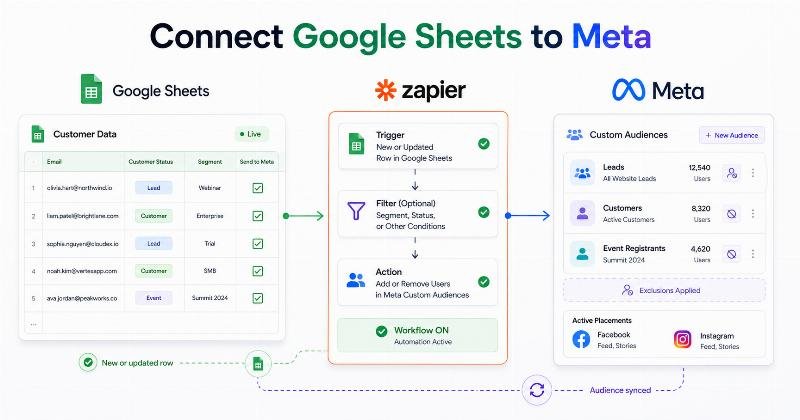

Google Sheets Custom Audiences by Zapier: Connect Spreadsheet Contacts with Meta Ads
Google Sheets is frequently used as a lightweight customer database. A business may store website leads, event registrations, offline customers, consultation requests or sales-qualified prospects in a spreadsheet. The difficulty begins when the same records must also be maintained inside Meta Custom Audiences for Facebook and Instagram advertising.
Exporting the sheet as a CSV and uploading it manually may be acceptable for an occasional campaign. It becomes repetitive when new contacts are added every day, customer statuses change or several prospect and exclusion audiences need regular updates.
Google Sheets Custom Audiences by Zapier connects spreadsheet-row events with Meta Customer List Custom Audience actions, allowing an eligible email address to be added or removed through an automated Zap.
Google Sheets provides the source rows. Zapier detects a new or updated row, applies any configured filters and performs the selected Facebook Custom Audiences action. Meta then processes the submitted email and attempts to match it with an account on its technologies.
This guide explains how the connection works, which spreadsheet structures are suitable, what the standard Zapier actions support, how to configure additions and removals, which plans may be required, and how to manage privacy, task usage, testing and troubleshooting. It also explains when a manual customer-list upload may remain the better choice.
What Is Google Sheets Custom Audiences by Zapier?
Google Sheets Custom Audiences by Zapier is a third-party, trigger-and-action integration between Google Sheets and Zapier’s Facebook Custom Audiences application.
A typical workflow looks like this:
New Google Sheets row → Zapier workflow → Add email to Meta Custom Audience
A more advanced workflow may use an updated status column:
Spreadsheet status changes to Customer → Zapier filter → Add email to customer exclusion audience
The integration is designed for organizations that maintain usable customer or lead information in Google Sheets and need individual audience updates without repeatedly downloading and uploading files.
Potential users include:
- Small businesses using spreadsheets as a simple CRM
- Digital marketing agencies
- Event and webinar organizers
- Lead-generation teams
- Offline sales businesses
- Service companies
- Ecommerce teams
- Membership organizations
- Performance marketers
Google Sheets remains the data source, Zapier manages the workflow and Meta processes the destination audience. The integration does not replace Meta Ads Manager, Meta Pixel, Conversions API, a full CRM or a proper customer-data governance process.
It also does not guarantee that every spreadsheet record will match a Meta account or that using the audience will improve advertising results.
About Google Sheets, Zapier and Meta Custom Audiences
What Is Google Sheets?
Google Sheets is a cloud-based spreadsheet application. Businesses use it to collect, review, organize and share structured information using rows and columns.
A spreadsheet used for audience automation might include columns such as:
- Email address
- First name
- Customer status
- Lead source
- Product interest
- Lifecycle stage
- Country or region
- Campaign eligibility
- Audience action
- Last updated timestamp
Google Sheets is flexible, but it is not automatically a CRM. It does not inherently enforce consent rules, suppression policies, deduplication or lifecycle governance. Those processes must be designed by the business.
What Is Zapier?
Zapier is an automation platform that connects applications through workflows called Zaps.
A Zap usually contains:
- A trigger that starts the workflow
- One or more actions that run afterward
For this integration, Google Sheets normally supplies the trigger and Facebook Custom Audiences supplies the action.
Zapier may also add workflow tools such as:
- Filters
- Conditional paths
- Data formatting
- Delays
- Notifications
- Spreadsheet status updates
- Error-management steps
The availability of advanced workflow features depends on the current Zapier plan.
What Are Meta Customer List Custom Audiences?
A Meta Customer List Custom Audience is created from customer information supplied by an advertiser. Meta attempts to match supported customer identifiers with accounts on its technologies.
Depending on current account and campaign eligibility, these audiences may support:
- Retargeting existing leads
- Customer retention campaigns
- Cross-selling or upselling
- Excluding customers from acquisition campaigns
- Event follow-up
- Re-engaging eligible inactive contacts
- Creating a Lookalike Audience source where available
Zapier’s standard Facebook Custom Audiences actions currently focus on adding and removing individual email addresses. A manual Meta upload may support additional customer identifiers.
Role of Each Platform
| Platform | Primary Role | Example |
|---|---|---|
| Google Sheets | Stores customer or lead rows | A new lead is added with an email and status |
| Zapier | Detects the row and performs the configured workflow | A filter checks whether the status is Qualified |
| Meta Custom Audiences | Processes the submitted email addition or removal | The email is submitted to a qualified-leads audience |
| Meta Ads Manager | Uses the processed audience in eligible advertising campaigns | The audience is selected for retargeting or exclusion |
How the Google Sheets and Meta Integration Works
Google Sheets row → Zapier trigger → Filter or formatting → Meta Custom Audience action → Meta processing → Campaign use
Stage 1: A Row Is Added or Updated
The workflow begins when Zapier detects a supported event in a selected spreadsheet and worksheet.
Relevant Google Sheets triggers currently include:
- New Spreadsheet Row
- New or Updated Spreadsheet Row
- New Spreadsheet Row for a shared or Team Drive
- New or Updated Spreadsheet Row for a shared or Team Drive
The correct trigger depends on where the spreadsheet is stored and whether the workflow should react only to new rows or also to changes in existing rows.
Stage 2: Zapier Retrieves the Row Data
Zapier reads the headers and values from the triggering row. The first spreadsheet row must contain clear column headers so Zapier can identify the available fields.
A sample row might look like this:
| Status | Region | Audience Action | Updated At | |
|---|---|---|---|---|
| customer@example.com | Qualified Lead | Bangladesh | Add | 2026-08-03 10:30 |
Stage 3: A Filter Determines Eligibility
A Filter step can stop unsuitable rows from proceeding.
For example, the Zap may continue only when:
- Email is not empty
- Status equals Qualified Lead
- Audience Action equals Add
- Consent Status equals Eligible
- Record Type does not equal Employee
Without a filter, every new or updated row may trigger the destination action, including incomplete or unsuitable records.
Stage 4: Zapier Performs a Custom Audience Action
Zapier’s current Facebook Custom Audiences application provides standard actions including:
- Create Custom Audience: Creates a new Customer List Custom Audience using a name and description.
- Add Email to Custom Audience: Adds one email address to an existing audience.
- Remove Email From Custom Audience: Removes one email address from an existing audience.
- API Request: An advanced beta action for authenticated requests.
The standard add and remove actions require an audience and an email address.
Stage 5: Meta Processes the Email
A successful Zap means the configured action completed. It does not mean that the email was immediately matched or made available for campaign delivery.
Meta attempts to associate the submitted email with an account. The final Custom Audience may be smaller than the number of successful Zap runs.
Stage 6: The Audience Is Used in Advertising
After Meta finishes processing the update, the audience may be selected in an eligible Facebook or Instagram campaign.
The advertiser must verify whether the audience is being used as:
- A retargeting audience
- A customer audience
- An exclusion
- A suggestion within an automated audience system
Audience synchronization and campaign configuration are separate responsibilities.
Stage 7: The Workflow Is Monitored
Zapier’s workflow history can show whether a row was detected, filtered, completed or stopped by an error.
Meta Ads Manager should be checked separately for:
- Audience status
- Processing progress
- Approximate audience availability
- Campaign selection
- Policy warnings
How to Structure the Google Sheet
A reliable spreadsheet structure is essential. Automation problems often begin with inconsistent headers, blank rows, unexpected structural changes or unclear status values.
Use One Header Row
Place descriptive column headers in the first row. Do not create separate header sections halfway down the worksheet.
Recommended headers might include:
- Contact ID
- First Name
- Status
- Segment
- Consent Status
- Audience Action
- Send to Zap
- Updated At
- Processed Status
Use One Contact Per Row
Each row should represent one contact and one clear audience decision. Avoid combining several email addresses in one cell.
Keep the Email Column Consistent
Do not mix email addresses, phone numbers and notes in the same column. Remove leading and trailing spaces and correct obvious formatting errors.
Add a Dedicated Trigger Column
A useful approach is to create a column named:
Send to Zap
Populate all other required fields first. Change the trigger column only when the row is complete and ready for processing.
This reduces the risk of Google Sheets autosaving a partially completed row and triggering the Zap before all required information is available.
Use Clear Audience Actions
Instead of deleting a row when a contact should be removed, update an action or status field.
For example:
- Add
- Remove
- Hold
- Do Not Send
Deleting or moving rows can disrupt Google Sheets trigger tracking because Zapier may rely on row positions to identify new records.
Add a Unique Update Value
Updated-row triggers may not run again when a monitored column is changed back to a value that Zapier has already seen for that row.
A dedicated timestamp or incrementing version column can provide a new unique value each time the row should trigger.
Example Recommended Sheet
| Contact ID | Segment | Consent Status | Audience Action | Trigger Timestamp | |
|---|---|---|---|---|---|
| LEAD-1001 | lead@example.com | Qualified Lead | Eligible | Add | 2026-08-03 09:10:01 |
| CUST-1002 | customer@example.com | Existing Customer | Eligible | Add | 2026-08-03 09:12:45 |
| LEAD-1003 | removed@example.com | Qualified Lead | Opted Out | Remove | 2026-08-03 09:17:30 |
What Data Can Be Used?
The Standard Audience Action Uses Email
Zapier’s standard Add Email and Remove Email actions currently require an email address. Other spreadsheet columns can control the workflow, but they are not necessarily transferred as Meta matching identifiers.
| Spreadsheet Information | Potential Workflow Purpose | Sent by Standard Email Action? |
|---|---|---|
| Email address | Customer-list matching identifier | Yes |
| Customer status | Determines the destination audience | No |
| Lead source | Filters or routes contacts | No |
| Product interest | Selects a product-specific audience | No |
| Country or region | Routes a contact to a regional workflow | No |
| Consent status | Stops ineligible rows | No |
| Audience action | Chooses addition or removal logic | No |
| Conversion value | Internal segmentation or reporting | No, not through the standard email action |
| Phone number | May be useful in other Meta upload methods | No, not through the standard email action |
Businesses that need phone numbers, names, postal codes or several matching identifiers should compare the Zapier workflow with Meta’s manual customer-list upload, another supported integration or a carefully reviewed API solution.
Why Data Quality Matters
Before the Zap is published:
- Remove duplicate rows where appropriate.
- Correct malformed email addresses.
- Separate active records from suppressed contacts.
- Avoid using blank rows as placeholders.
- Use consistent status values.
- Remove test and employee records.
- Map only information required for the workflow.
A spreadsheet containing an email does not automatically mean the contact is eligible for advertising use.
Main Benefits
Reduced Manual CSV Work
The most direct benefit is reducing repeated spreadsheet exports and Meta uploads.
For example, when a salesperson adds an eligible lead to a shared sheet, the Zap can submit the email without waiting for the marketing team to prepare another CSV file.
The workflow must still be monitored for invalid rows and errors.
Event-Based Audience Updates
A new or updated row can start an audience action without waiting for a scheduled bulk-upload process.
This may be useful when customer statuses change throughout the day. Google Sheets triggers are not always truly immediate, and Meta requires additional processing time.
Accessible Source Management
Many teams already understand spreadsheets. A clearly designed Google Sheet can provide an accessible interface for reviewing which contacts are scheduled for addition or removal.
Easy access also creates risk. Editing permissions should be restricted so unauthorized users cannot alter audience instructions.
Flexible Segmentation
Columns can represent lead source, lifecycle stage, location, product interest or customer status. Filters and paths can route contacts into different Meta audiences.
For example:
- Qualified leads → Retargeting audience
- Existing customers → Acquisition exclusion audience
- Webinar registrants → Event audience
- Inactive contacts → Re-engagement audience
Automatic Contact Removal
A row update can trigger a removal action when a contact becomes ineligible, opts out or moves to another lifecycle group.
Removal logic should be created alongside addition logic. Deleting the spreadsheet row is not a reliable replacement for a dedicated removal workflow.
Cross-Application Workflows
The same Zap may include additional actions, such as:
- Updating a processed-status column
- Sending a notification to the marketing team
- Recording the update in a separate log
- Creating a CRM record
- Adding an internal task
Additional actions can increase workflow complexity and task usage.
Better Technical Visibility
Zapier’s workflow history can help determine whether a spreadsheet row triggered, passed its filter and reached the Meta action.
This is more informative than relying only on a manually uploaded file, but it does not reveal Meta’s individual matching results.
Scalable Reusable Workflows
Once a reliable sheet structure and Zap are established, the pattern can be adapted for other campaigns or client accounts.
Each copy must still be checked for the correct spreadsheet, ad account, audience and privacy purpose.
Practical Use Cases
1. Add New Website Leads from a Sheet
Source information: Website leads are added to a Google Sheet.
Trigger: New Spreadsheet Row.
Destination: A Meta lead-retargeting audience.
Business action: Zapier adds the row’s email address.
Intended result: Maintain an audience of recent leads for relevant follow-up advertising.
Limitation: The email may not match a Meta account, and the lead must be eligible for this use.
2. Add Qualified Leads After a Status Update
Source information: A salesperson changes Status to Qualified.
Trigger: New or Updated Spreadsheet Row using a dedicated trigger column.
Destination: Qualified Leads Custom Audience.
Business action: Show decision-stage resources or customer proof.
Intended result: Coordinate sales qualification with paid-social messaging.
Limitation: Monitoring every column may trigger the Zap during unrelated edits.
3. Maintain a Customer Exclusion Audience
Source information: A row’s lifecycle stage changes to Customer.
Trigger: Updated row or updated trigger timestamp.
Destination: Existing Customers audience.
Business action: Use the audience as an exclusion from new-customer campaigns.
Intended result: Separate acquisition messaging from customer communication.
Limitation: The exclusion must be configured correctly in Meta, and recent updates are not immediate.
4. Remove Converted Leads from Prospect Retargeting
Source information: Audience Action changes to Remove after conversion.
Trigger: Updated trigger timestamp.
Destination: Prospect Custom Audience.
Business action: Zapier removes the email.
Intended result: Reduce conflicting prospect messages after a purchase.
Limitation: A separate customer-addition workflow may also be needed.
5. Follow Up with Event Registrants
Source information: Registration rows containing eligible email addresses.
Trigger: New Spreadsheet Row.
Destination: Event Registrants audience.
Business action: Promote reminders, related materials or post-event content.
Intended result: Coordinate spreadsheet-based registration data with Meta campaigns.
Limitation: Cancellations and converted registrants require removal or exclusion rules.
6. Synchronize Offline Customer Records
Source information: Eligible customers recorded by a store or sales team.
Trigger: New completed row.
Destination: Offline Customers audience.
Business action: Customer retention, cross-selling or exclusion.
Intended result: Use permitted offline customer information in paid-social planning.
Limitation: Offline collection notices and lawful-use requirements must be reviewed carefully.
7. Build Regional Audience Workflows
Source information: Region and eligibility columns.
Trigger: New or updated row.
Destination: A region-specific audience selected through filters or paths.
Business action: Show location-relevant campaigns.
Intended result: Organize separate audiences for different markets.
Limitation: Incorrect location values can route a record into the wrong audience.
8. Manage Agency Client Audience Requests
Source information: An approved client spreadsheet containing eligible audience instructions.
Trigger: A dedicated approval or Send to Zap column.
Destination: The relevant client’s Meta audience.
Business action: Add or remove approved contacts.
Intended result: Standardize audience requests across client teams.
Limitation: Selecting the wrong client ad account can create a serious data-governance incident.
Requirements Before Setup
- A Google account: The spreadsheet must be accessible through the connected account.
- Appropriate sheet permissions: Zapier requires access to read the triggering worksheet.
- Google Workspace third-party access: An administrator may need to allow Zapier in managed organizations.
- A correctly formatted worksheet: Use one header row and consistent columns.
- A Zapier account: The automation is built and monitored there.
- An eligible paid Zapier plan or trial: Facebook Custom Audiences is a Premium Zapier application.
- A Meta Business Portfolio: It organizes the relevant advertising assets.
- A Meta ad account: The destination audience belongs to an advertising account.
- Required Meta permissions: The connected profile must have appropriate administrative and audience access.
- Accepted Meta Customer List Custom Audience Terms: Missing acceptance may block the action.
- A destination audience: Add and remove actions require the correct existing audience.
- Valid email addresses: Standard actions currently rely on email.
- A lawful data purpose: The business must have the rights and appropriate basis to use the information.
- Addition and removal logic: Define how records enter and leave each audience.
- A testing plan: Use controlled rows before activating a production workflow.
Step-by-Step Setup Guide
Step 1: Define the Audience Purpose
Decide whether the audience will be used for retargeting, customer marketing, exclusion, event follow-up or another clearly documented purpose.
Identify both the addition condition and removal condition.
Step 2: Prepare the Google Sheet
Create one worksheet for the workflow. Add descriptive headers in the first row and one contact per subsequent row.
Recommended minimum columns:
- Audience Action
- Eligibility Status
- Trigger Timestamp
- Processed Status
[Screenshot: Preparing the Google Sheets audience table]
Step 3: Add a Controlled Trigger Column
Create a column such as Send to Zap or Trigger Timestamp. Complete the rest of the row before changing this field.
Step 4: Create or Access a Zapier Account
Sign in to Zapier and confirm that the account is on an eligible paid plan or active Pro trial.
Step 5: Create a New Zap
Begin a new workflow and provide a descriptive name.
Example:
Google Sheets Qualified Leads to Meta Audience
Step 6: Select Google Sheets as the Trigger Application
Choose Google Sheets and connect the Google account that can access the required file.
[Screenshot: Selecting Google Sheets as the trigger]
Step 7: Choose the Trigger Event
Select New Spreadsheet Row when only newly added rows should run the Zap.
Select New or Updated Spreadsheet Row when status changes or removal instructions should also trigger the workflow.
Use the shared-drive or Team Drive variation when the file is stored in a shared drive.
Step 8: Select the Spreadsheet and Worksheet
Choose the correct Drive, spreadsheet and worksheet. Verify the names carefully when an agency or organization owns many files.
Step 9: Select a Trigger Column
For an updated-row workflow, select a dedicated trigger column instead of monitoring Any Column.
This helps prevent unrelated spreadsheet edits from starting the Zap.
Step 10: Test the Google Sheets Trigger
Create a complete sample row containing a controlled email address and appropriate status values.
Test the trigger and confirm that Zapier retrieves every field needed by subsequent steps.
[Screenshot: Testing the Google Sheets row]
Step 11: Add an Eligibility Filter
Add conditions such as:
- Email exists
- Eligibility Status equals Eligible
- Audience Action equals Add
- Processed Status does not equal Completed
Step 12: Select Facebook Custom Audiences as the Action
Choose Zapier’s Facebook Custom Audiences application.
[Screenshot: Selecting Facebook Custom Audiences]
Step 13: Choose the Required Action
Select Add Email to Custom Audience for an addition workflow.
Select Remove Email From Custom Audience for a removal workflow.
Create Custom Audience should normally be used deliberately rather than running every time a spreadsheet row changes.
Step 14: Connect the Meta Account
Authorize the correct Meta profile and grant the requested permissions.
Verify the Business Portfolio, Page and advertising account access.
[Screenshot: Authorizing the Meta account]
Step 15: Accept the Applicable Meta Terms
Confirm that Customer List Custom Audience Terms have been accepted for the destination ad account.
Step 16: Select the Destination Audience
Choose the correct audience and verify its owning advertising account.
Use descriptive audience names, for example:
GoogleSheets-QualifiedLeads-BD-Retargeting
Step 17: Map the Email Field
Select the dynamic Email value from the Google Sheets trigger.
Do not enter a fixed sample email into a production Zap.
[Screenshot: Mapping the spreadsheet email]
Step 18: Test the Audience Action
Submit a controlled test and review Zapier’s result.
A successful test confirms that the action completed. It does not confirm that Meta matched the email.
Step 19: Publish the Zap
Review the spreadsheet, trigger column, filter, Meta account, audience and email mapping before publishing.
Step 20: Create the Removal Workflow
Build a separate Zap or conditional path for Audience Action equals Remove.
Do not rely on deleting spreadsheet rows to remove contacts from Meta.
Step 21: Record the Processing Result
An optional Google Sheets action can update a Processed Status or Processed At column after the Meta action succeeds.
Ensure that this update does not unintentionally restart the same Zap.
Step 22: Verify the Audience in Meta
Review the audience status and allow time for destination processing.
[Screenshot: Verifying the audience in Meta Ads Manager]
Free Plan, Free Trial and Paid Plans
Pricing and plan availability were checked on 3 August 2026.
Google Sheets does not require a paid Google Sheets subscription for use with Zapier. The connected Google account must have sufficient access to the selected spreadsheet.
Zapier offers a Free plan, but Facebook Custom Audiences is currently marked as a Premium application. Premium applications are available on paid Zapier plans or during an active trial.
New Zapier accounts currently receive an automatic 14-day Pro trial. Zapier states that no payment method is required and that the account does not automatically upgrade when the trial ends.
| Option or Plan | General Purpose | Relevant Feature Availability | Important Limitation |
|---|---|---|---|
| Google Sheets Free Access | Create and manage spreadsheet data | No paid Google Sheets plan is required for the Zapier connection | Google Workspace administration may restrict third-party access |
| Zapier Free | Basic single-user automation | Google Sheets can be used, but Facebook Custom Audiences is Premium | The complete integration cannot continue on Free after the trial |
| Zapier Pro Trial | Temporary evaluation of paid individual features | Premium applications and multi-step workflows can be tested | The current trial lasts 14 days and is not permanent access |
| Zapier Pro | Paid single-user automation | Supports Premium applications and more advanced Zaps | Task allowance and price depend on the selected level |
| Zapier Team | Collaborative automation for multiple users | Supports shared workflows and application connections | Requires stronger access and governance management |
| Zapier Enterprise | Large-scale organizational automation | Provides broader security, administration and governance | Pricing and configuration require provider verification |
| Meta Advertising | Processes audiences and runs advertising campaigns | Customer-list functionality is subject to account eligibility and terms | Advertising spend is separate from Zapier subscription costs |
Zapier’s current Free plan includes 100 monthly tasks and two-step Zaps. Those allowances do not override the Premium-app restriction.
A successful Facebook Custom Audiences action may contribute to Zapier task usage under the current task-accounting rules. A high-volume sheet can therefore create substantial task consumption if every new or updated row runs the Zap.
Estimate:
- Expected new rows per month
- Expected status updates
- Audience additions
- Audience removals
- Additional actions in each workflow
- Repeated or unnecessary triggers
Pricing, plan names and feature limits can change. Review the current official pricing page before subscribing.
Manual Upload vs Automated Zapier Integration
| Factor | Manual Method | Automated Integration |
|---|---|---|
| Initial setup | Relatively simple for one file | Requires sheet design, authorization, filters and testing |
| Ongoing maintenance | Requires repeated CSV exports and uploads | Runs when eligible rows are added or updated |
| Data freshness | Depends on the most recent upload | Depends on trigger timing and Meta processing |
| Matching identifiers | Manual Meta uploads may support several identifiers | Standard Zapier add and remove actions currently use email |
| Human error | Repeated file and column errors are possible | Configuration errors can repeat automatically |
| Contact removal | Requires another audience update | Can use a dedicated row status and removal action |
| Scalability | Difficult for frequent changes | Suitable for recurring row-based activity |
| Monitoring | Internal records and Meta history | Zapier history plus Meta audience status |
| Cost | No additional automation subscription | Requires an eligible paid Zapier plan after the trial |
| Best use case | Small, occasional or multi-identifier audience uploads | Frequent email-based additions and removals |
The manual method may remain suitable when the audience changes only occasionally, several matching identifiers are required or the organization cannot justify ongoing Zapier task costs.
The automated method is more useful when individual rows change regularly and the team can maintain a controlled spreadsheet structure.
Privacy, Consent and Data Protection
A spreadsheet of customer or lead emails contains personal information. Connecting that sheet to an advertising platform creates responsibilities for collection, access, security, retention and marketing use.
Use Appropriate First-Party Data
The business should use information collected through legitimate interactions such as purchases, subscriptions, inquiries, registrations or customer accounts.
Do not use scraped, purchased or unauthorized lists merely because they can be placed in a spreadsheet.
Establish a Lawful Basis
Meta’s Customer List Custom Audience Terms require the advertiser to have the necessary rights, permissions and lawful basis to disclose and use the customer data.
An agency processing the list for a client must also have authority to act for that advertiser.
Provide Appropriate Notice
The privacy notice should accurately explain relevant advertising, audience-matching and third-party processing activities.
Manage Opt-Outs and Suppression
The spreadsheet should include or reference an eligibility system that prevents suppressed or objecting contacts from being added.
A separate removal workflow may be required when an eligible contact later opts out.
Restrict Spreadsheet Sharing
A customer-data sheet should not be publicly shared through an unrestricted link. Use specific account access and assign only the permissions required for each person.
Review who can:
- View the sheet
- Edit contact information
- Change audience instructions
- Share the file
- Access Zapier connections
Apply Data Minimization
The standard Zapier action requires an email address. Do not store or transfer extra personal information unless it has a genuine purpose and appropriate protection.
Avoid Sensitive Audience Definitions
Do not create audience labels or segments that reveal or strongly imply sensitive health, financial, political, religious or other protected information without a complete platform-policy and legal assessment.
Review Regional Privacy Laws
GDPR, UK GDPR, CCPA, CPRA and other laws may create requirements involving lawful basis, notice, data rights, contracts, retention and security.
The integration does not automatically create legal compliance. Meta or Zapier approval does not replace legal obligations, and the business remains responsible for its data practices. Professional legal advice may be required.
Best Practices
- Use one clearly defined worksheet. Separate unrelated audience projects instead of mixing several processes in one table.
- Keep one header row. Clear first-row headers help Zapier identify fields reliably.
- Add one contact per row. Do not combine several emails in one cell.
- Use a dedicated trigger column. This prevents the Zap from running before a row is complete.
- Use status changes instead of deleting rows. A removal status is more reliable and auditable.
- Maintain a unique update timestamp. This helps updated-row triggers detect repeated lifecycle changes.
- Filter missing and ineligible emails. Stop unsuitable rows before they reach Meta.
- Use descriptive spreadsheet, Zap and audience names. Clear names reduce account-selection errors.
- Test addition and removal separately. Both parts are necessary for an accurate audience.
- Restrict file access. Only authorized people should edit customer-data and audience-action fields.
- Monitor task usage and workflow history. Unexpected edits can create repeated runs and additional cost.
- Measure campaign results separately. A technically successful Zap does not prove that the audience produced business value.
Common Mistakes to Avoid
Using an Unstructured Spreadsheet
Multiple header rows, merged cells and mixed data types make field detection unreliable. Use a simple tabular structure.
Leaving the Email Column Blank
The standard audience action cannot add or remove a contact without an email. Add a filter that stops blank records.
Monitoring Every Column
An updated-row trigger configured for Any Column may run whenever any cell changes. Use a dedicated trigger column.
Completing the Row One Cell at a Time
Google Sheets autosaves changes. The Zap may start before the row contains all required information. Complete the row first and update the trigger field last.
Deleting Rows to Remove Contacts
Row deletion can disrupt trigger deduplication and does not automatically perform the Meta removal action. Use a Remove status and a dedicated Zap.
Inserting or Deleting Rows While the Zap Is Active
Structural changes can affect row numbering and cause triggers to miss new records. Pause the workflow during major spreadsheet restructuring.
Using Repeated Trigger Values
An updated-row trigger may not detect a value that has already appeared in the monitored column for that row. Use a unique timestamp or version value.
Using the Wrong Shared-Drive Trigger
A spreadsheet stored in a shared drive may require the specific Team Drive trigger. The standard trigger may behave incorrectly.
Selecting the Wrong Meta Account
Agencies often manage several advertising accounts. Verify the Business Portfolio and numerical ad-account ID.
Creating an Addition Workflow Without Removal Logic
The Meta audience can become outdated if converted, ineligible or opted-out contacts are never removed.
Assuming the Free Plan Supports the Full Integration
Google Sheets may be free, but Facebook Custom Audiences is a Premium Zapier application. Ongoing use requires an eligible paid plan.
Assuming Every Successful Action Produces a Match
Meta may not associate every submitted email with an account. A successful Zap and a matched audience member are not the same thing.
Troubleshooting
| Problem | Possible Cause | Recommended Check | Suggested Resolution |
|---|---|---|---|
| Google Sheets will not connect | Wrong Google account or restricted third-party access | Google account and Workspace administration | Use the authorized account or ask the administrator to permit access |
| Spreadsheet is missing | The connected account cannot access it | File ownership and sharing permissions | Share the file with the connected Google account |
| Worksheet fields are missing | Headers are absent or incorrectly positioned | The first spreadsheet row | Add one complete header row and retest |
| Zap does not trigger | Rows were deleted or renumbered | Recent structural spreadsheet changes | Reconfigure or recreate the trigger after stabilizing the sheet |
| Zap triggers too early | The row was saved before all cells were completed | Trigger design and row-entry process | Use a dedicated trigger column and update it last |
| Zap runs after every edit | Any Column is being monitored | Trigger Column setting | Select a specific status or timestamp column |
| Updated row does not trigger again | The monitored value was already used | Trigger-column history | Use a unique timestamp or incrementing version |
| Shared-drive sheet does not trigger correctly | Wrong trigger type | Spreadsheet storage location | Use the relevant Team Drive trigger |
| Trigger is not immediate | Google Sheets trigger processing delay | Zap history and trigger type | Allow several minutes before diagnosing a failure |
| Meta connection fails | Missing permission or expired authorization | Meta Business Portfolio and ad-account access | Reconnect the correct profile and approve required permissions |
| Custom Audience is missing | Wrong ad account or audience type | Audience ownership and account ID | Select an eligible customer-list audience |
| Audience action fails | Meta terms have not been accepted | Customer List Custom Audience Terms | Accept the terms for the destination ad account |
| Email is rejected | Invalid or blank email value | Source row and mapped field | Correct the email and add an eligibility filter |
| Zap succeeds but audience does not change | Meta is processing the action or could not match the email | Meta audience status and update time | Allow processing time and confirm the destination audience |
| Duplicate actions occur | Repeated edits or duplicate rows | Zap history and source Contact ID | Deduplicate records and refine the trigger |
| Zap stops after the trial | The Premium application requires a paid plan | Zapier billing status | Upgrade or choose another audience-update method |
| Task allowance is exhausted | Too many row events or actions | Task usage and unnecessary triggers | Reduce repeated runs or review the plan |
| Removal does not occur | No dedicated removal action was created | Audience Action values and removal Zap | Create and test a Remove Email workflow |
One suggested resolution may not fix every account-specific issue. Review the complete Zap run, connected applications and destination status before changing a production workflow.
How to Measure Success
Technical Integration Metrics
- Rows detected
- Rows filtered out
- Successful audience additions
- Successful audience removals
- Failed actions
- Last execution time
- Duplicate runs
- Missing email records
- Authentication errors
- Zapier task usage
- Meta audience processing status
Marketing and Business Metrics
- Audience reach
- Impressions
- Frequency
- Click-through rate
- Cost per result
- Qualified leads
- Conversion rate
- Cost per qualified lead
- Customer acquisition cost
- Sales opportunities
- Revenue attribution
- Return on ad spend
- Customer-exclusion accuracy
A technically successful workflow confirms that Zapier submitted the configured action. It does not confirm that Meta matched the email, served an advertisement or generated a valuable conversion.
Technical health and marketing performance should be reviewed separately.
Who Should Use This Integration?
- Businesses already maintaining leads in Google Sheets
- Teams that receive frequent new spreadsheet rows
- Agencies operating controlled client-audience sheets
- Event and webinar marketers
- Offline businesses recording eligible customers in spreadsheets
- Teams maintaining customer-exclusion audiences
- Businesses that need filters and cross-application actions
- Organizations with clear addition and removal rules
- Marketers who need workflow history and error visibility
Who May Not Need It?
- Businesses with only a few occasional contacts
- Teams updating an audience once or twice per year
- Organizations requiring several Meta matching identifiers
- Businesses already using a suitable CRM-to-Meta integration
- Companies without an active Meta advertising account
- Teams unable to justify Zapier task costs
- Organizations without controlled spreadsheet access
- Businesses lacking appropriate privacy permissions
- Teams that cannot maintain reliable row status and removal logic
Advantages and Limitations
| Advantages | Limitations |
|---|---|
| Uses a familiar spreadsheet interface | Google Sheets is not a complete CRM or consent system |
| Reduces repeated CSV uploads | Requires a paid Zapier plan after the trial |
| Supports new and updated row triggers | Spreadsheet structural changes can disrupt triggers |
| Supports individual email additions | Standard actions currently use email only |
| Supports individual email removals | Removal logic must be designed separately |
| Allows filters and conditional routing | Complex workflows may increase task usage |
| Provides Zap execution history | A successful action does not guarantee a Meta match |
| Can support customer exclusions | The exclusion must still be applied correctly in Meta |
| Can connect with additional applications | Adds another third-party dependency |
| Can scale recurring row-based workflows | Does not guarantee better advertising performance |
Practical Example
This is a hypothetical example and not a verified customer case study.
A local service company records consultation leads and confirmed customers in a Google Sheet. The marketing team manually exports the spreadsheet each Friday and updates two Meta audiences:
- Qualified Consultation Leads
- Existing Customers Exclusion
The weekly process means that customers who convert on Saturday may continue seeing new-customer advertisements for several days.
The company reorganizes the sheet with these columns:
- Contact ID
- Lifecycle Stage
- Consent Status
- Audience Action
- Trigger Timestamp
Two Zaps are created.
Zap One: Add Eligible Contacts
- The trigger timestamp is updated.
- A filter confirms that the email exists and Consent Status equals Eligible.
- A path checks the Lifecycle Stage.
- Qualified leads are added to the lead audience.
- Customers are added to the exclusion audience.
Zap Two: Remove Ineligible Contacts
- Audience Action changes to Remove.
- The trigger timestamp receives a new value.
- The email is removed from the selected audience.
- The sheet’s Processed Status is updated.
The expected operational benefit is more frequent, structured audience maintenance. It does not guarantee lower advertising costs or higher conversion rates.
Before launch, the company restricts spreadsheet access, reviews its privacy notice, tests controlled emails and confirms that the correct Meta ad account is connected.
The main limitation is that Zapier’s standard audience action uses email only. Customers using a different email for Meta may not be matched.
Final Thoughts
Google Sheets Custom Audiences by Zapier provides a practical connection between spreadsheet-row activity and Meta Customer List Custom Audiences. A new or updated row can start a workflow that checks eligibility and adds or removes an email from the selected audience.
Its strongest benefit is accessibility. Teams that already use Google Sheets can create a controlled audience process without building a custom application. A well-structured worksheet can also make additions, removals and processing status easier to review.
The main limitation is that a spreadsheet requires disciplined management. Deleting rows, changing headers, monitoring every column or allowing unrestricted access can create technical and privacy problems. The standard Zapier audience actions also focus on email rather than the broader set of identifiers available through some other methods.
Google Sheets itself does not require a paid subscription for this connection, but Facebook Custom Audiences is currently a Premium Zapier application. Ongoing use therefore requires an eligible paid Zapier plan after the trial.
The business remains responsible for lawful collection, appropriate notice, opt-out handling and secure access. A completed Zap does not guarantee Meta matching or successful campaign performance.
Begin with one controlled worksheet, one addition workflow and one removal workflow. Test them with non-sensitive sample records, verify the current plan requirement and review Meta processing before expanding the automation.
A dependable spreadsheet-to-Meta workflow needs clear headers, a controlled trigger field, documented eligibility rules and a reliable method for removing contacts who should no longer remain in the audience.
Frequently Asked Questions
What is Google Sheets Custom Audiences by Zapier?
It is a third-party automation that connects new or updated Google Sheets rows with Facebook Custom Audiences actions in Zapier. A spreadsheet row can trigger a Zap that creates an audience, adds an email address to an existing audience or removes an email address. Meta performs the final customer matching and processing.
Can Google Sheets connect directly with Meta Custom Audiences?
Google Sheets does not provide the standard audience action itself. Zapier acts as the integration layer between the spreadsheet and Meta. The workflow is configured in Zapier using Google Sheets as the trigger application and Facebook Custom Audiences as the destination action.
Is the integration free?
Not for ongoing production use. Google Sheets does not require a paid plan for the Zapier connection, but Facebook Custom Audiences is currently a Premium Zapier application. Premium applications are available on paid plans or during an active trial. A Free Zapier account cannot continue running this complete integration after the trial ends.
How long is the Zapier free trial?
New Zapier accounts currently receive an automatic 14-day Pro trial. Zapier states that no payment method is required and the account does not automatically upgrade when the trial ends. Premium applications can be tested during this period, but an eligible paid plan is required to continue afterward.
Which Zapier plan may be required?
A paid Zapier plan that supports Premium applications is required. Pro may be suitable for an individual workflow, while Team or Enterprise may be appropriate when several people need shared connections, collaboration or stronger administrative controls. The required task level depends on the number of spreadsheet additions, updates and audience actions.
Which Google Sheets triggers can be used?
Relevant triggers include New Spreadsheet Row and New or Updated Spreadsheet Row. Shared-drive files may require the corresponding Team Drive trigger. The correct choice depends on whether the Zap should respond only to new rows or also to status changes within existing rows.
Are Google Sheets triggers immediate?
Not always. Zapier currently explains that Google Sheets triggers can take approximately a few minutes even when labelled instant. Shared-drive updated-row triggers may also use polling rather than instant processing. Meta requires additional time after Zapier submits the audience action.
What customer information can the standard action send?
Zapier’s standard Add Email and Remove Email actions currently use an email address. Other spreadsheet columns can control filters, paths and audience selection, but they are not automatically sent as Meta matching identifiers. Businesses requiring phone numbers or several identifiers should evaluate another method.
Can a contact be removed automatically?
Yes. Zapier provides a Remove Email From Custom Audience action. The spreadsheet should contain a clear removal status or action field that triggers the appropriate Zap. Deleting the spreadsheet row is not a reliable replacement for an explicit removal workflow.
Why should I avoid deleting spreadsheet rows?
Zapier may use row numbers to distinguish previously processed Google Sheets records. Deleting or inserting rows can renumber the remaining data and interfere with trigger detection. A status such as Remove or Ineligible creates a more reliable and auditable process.
Why does the Zap run before the row is complete?
Google Sheets autosaves each cell change. A new-row trigger may therefore detect the record while information is still being entered. Use a dedicated Send to Zap or timestamp column and update it only after all required fields are complete.
Why did an updated row fail to trigger again?
Zapier may not detect an updated column when it is changed back to a value already seen in that row. A unique timestamp, version number or other new trigger value can help the workflow recognize every intended update.
Why is the Meta audience smaller than the spreadsheet?
A successful Zap confirms that the email was submitted. Meta may not match every address because people may use different emails, records may be outdated or the email may not correspond to a Meta account. Perfect audience matching is not guaranteed.
What happens when the Zap is disconnected?
Future row events will no longer perform audience additions or removals after the Zap or application connection is disabled. The existing audience may remain in Meta with its last processed membership. Campaigns using that audience should be reviewed so they do not rely indefinitely on outdated data.
Does the integration guarantee better advertising results?
No. The workflow may reduce manual work and make audience updates more organized, but it cannot guarantee more conversions, lower costs or better return on ad spend. Results still depend on data quality, matching, campaign configuration, creative, offer, budget and Meta’s delivery system.