

 Bonani DOSH, Dhaka - 1230, Bangladesh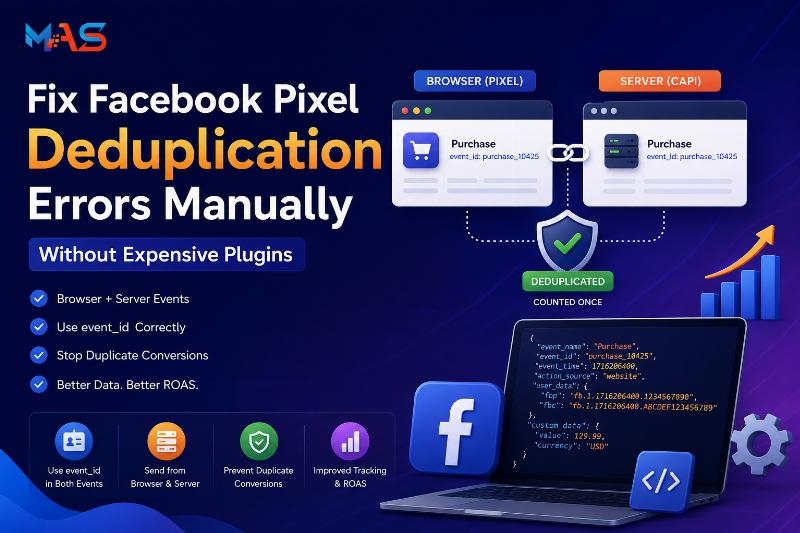

How to Manually Fix Facebook Pixel Deduplication Errors Without Expensive Plugins
Small e-commerce businesses in the USA are under pressure from every side. Ad costs are rising, profit margins are tighter, and almost every marketing tool now comes with a monthly subscription.
For many store owners, Facebook Pixel and Meta Conversions API tracking is one of those areas where plugins look convenient but expensive. A plugin may promise easy server-side tracking, better attribution, and automatic deduplication, but the monthly cost can become frustrating for a small business that is already paying for Shopify, WooCommerce hosting, email marketing, payment processing, shipping apps, and ad spend.
The good news is this: many Facebook Pixel deduplication errors can be fixed manually if you understand how browser events, server events, and event IDs work. Measurement is only one part of a campaign; this Meta Ads delivery overview covers a separate platform consideration.
This guide explains how Facebook Pixel deduplication works, why errors happen, and how a small e-commerce business can manually fix common deduplication problems without immediately depending on an expensive plugin.
This article is written for business owners, marketers, developers, and technical freelancers who manage Meta Ads tracking for e-commerce websites and want a simple, practical understanding of the issue.
What is Facebook Pixel deduplication?
Facebook Pixel deduplication is the process Meta uses to avoid counting the same conversion twice when the same event is sent from both the browser and the server.
For example, when a customer completes a purchase, your website may send:
-
A browser event through the Meta Pixel JavaScript code
-
A server event through the Meta Conversions API
Both events may represent the same customer action: one purchase.
If Meta receives both events and cannot recognize that they are the same conversion, your reporting may show duplicate purchases. This can affect campaign performance analysis, ROAS calculation, optimization, and decision-making.
Deduplication tells Meta:
These two events came from different sources, but they represent the same customer action. Count them once.
When deduplication is working correctly, Meta can receive stronger tracking signals from both browser and server sources without inflating your conversion count.
Why deduplication matters for small e-commerce businesses
For a large brand, a tracking error may be handled by an analytics team. But for a small e-commerce business, one tracking mistake can lead to poor decisions quickly.
If purchases are duplicated, you may think your ads are more profitable than they really are. If server events are not matched properly, you may think campaigns are weaker than they actually are. If deduplication is broken, Meta’s algorithm may receive confusing data and optimize based on unreliable signals.
Accurate tracking matters because it affects:
-
Reported purchases
-
Cost per purchase
-
ROAS
-
Campaign optimization
-
Retargeting audiences
-
Lookalike audience quality
-
Budget decisions
-
Scaling confidence
For a small store spending $1,000 to $10,000 per month on Meta Ads, even a small measurement error can create a big business problem.
That is why fixing Pixel deduplication is not just a technical task. It is part of protecting your advertising budget.
Browser event vs server event: the simple explanation
To understand deduplication, first you need to understand the two event sources.
Browser event
A browser event is sent from the customer’s browser using the Meta Pixel JavaScript code. For example, when a customer views a product page or completes checkout, the browser can send a Pixel event like:
-
PageView
-
ViewContent
-
AddToCart
-
InitiateCheckout
-
Purchase
Browser events are useful because they can carry browser-based signals such as cookies, page URL, and user interaction data. However, browser events may be affected by ad blockers, browser privacy settings, script issues, or network restrictions.
Server event
A server event is sent from your website server to Meta through the Conversions API. Instead of depending only on the customer’s browser, your backend sends the event after the action happens.
For example, after an order is successfully created in WooCommerce, Shopify, Laravel, or a custom e-commerce platform, your server can send a Purchase event to Meta.
Server events are useful because they are more stable for important business actions such as purchases, leads, subscriptions, and completed registrations.
Why use both?
Using both browser and server tracking can give Meta stronger signals. But when both sources send the same event, you must deduplicate them correctly.
The key to deduplication: event_id
The most important part of manual deduplication is the event_id.
The event ID is a unique identifier that connects the browser event and the server event together.
For deduplication to work properly, the browser event and server event should have:
-
The same event name
-
The same event ID
-
The same real customer action
-
A close event time
For example:
| Source | Event Name | Event ID | Customer Action |
| Browser Pixel | Purchase | purchase_10521 | Order completed |
| Server CAPI | Purchase | purchase_10521 | Same order completed |
Meta can now understand that both events are the same purchase and should be counted once.
If the browser sends purchase_10521 but the server sends purchase_98765, deduplication may fail because Meta sees two different events.
Common Facebook Pixel deduplication errors
Most deduplication issues come from a small number of mistakes. Here are the most common ones.
1. Browser and server events use different event IDs
This is the most common problem. The browser generates one event ID, while the server generates a different one.
Example problem:
| Source | Event | Event ID |
| Browser | Purchase | purchase_abc123 |
| Server | Purchase | order_999888 |
These may represent the same order, but the IDs do not match. The fix is to generate one event ID and use it in both places.
2. Event names do not match
The event ID may be the same, but the event name is different.
Example problem:
| Source | Event Name | Event ID |
| Browser | Purchase | purchase_10521 |
| Server | CompleteRegistration | purchase_10521 |
Meta may not deduplicate properly because these are different event types. If the customer action is a purchase, both sources should send Purchase.
3. Server event fires too late
If the browser event fires instantly but the server event is delayed too long, matching can become weaker. For purchase events, the server event should be sent as close to the order completion time as possible.
4. Purchase event fires multiple times on page refresh
Many stores fire the Purchase event on the thank-you page. If the customer refreshes the thank-you page, the browser event may fire again.
This can create repeated browser events with new IDs or duplicated events with the same order data.
The fix is to store a “purchase already fired” flag in the browser or, better, connect the event ID to the order ID and prevent repeated firing.
5. Plugin and custom code both send the same event
Sometimes a store has multiple tracking systems active at the same time:
-
Theme Pixel code
-
Shopify or WooCommerce Pixel integration
-
Google Tag Manager Pixel event
-
Server-side plugin
-
Custom CAPI code
If more than one system sends the same event without coordination, duplication is likely.
6. Missing fbp and fbc values
The _fbp and _fbc values help Meta identify users and connect events more accurately. If your server event does not include these values when available, event match quality may be weaker.
Deduplication mostly depends on event name and event ID, but match quality depends on user data and browser identifiers. For strong tracking, you should send both event ID and available user signals correctly.
Manual deduplication setup: the basic flow
The clean manual setup follows a simple flow:
-
Customer lands on your website.
-
Meta Pixel creates browser identifiers such as
_fbp. -
If the visit came from a Facebook ad, the URL may contain
fbclid, which can be used to create or support_fbc. -
Customer completes an important action, such as Purchase.
-
Your website generates one unique
event_id. -
The browser sends the Pixel event using that same
event_id. -
The server sends the Conversions API event using the same
event_id. -
Meta receives both events and deduplicates them.
The key rule is simple:
One customer action = one event_id shared between browser and server.
Step 1: Audit your current tracking setup
Before writing custom code, first check what is already sending events.
Open your website and inspect:
-
Meta Pixel Helper
-
Google Tag Manager preview mode
-
Meta Events Manager
-
Theme files
-
Installed tracking plugins
-
Shopify customer events or WooCommerce integrations
-
Any custom scripts in header/footer
Look for duplicate event sources. For example, if Purchase is already firing from a plugin and also from custom code, decide which system should control the event.
Do not keep multiple systems active unless you know exactly how each one is configured.
Step 2: Choose your source of truth for event_id
For e-commerce websites, the best event ID is usually based on the order ID or invoice ID.
Example event IDs:
-
purchase_10425 -
purchase_ORDER10025 -
purchase_INV202600321
This is better than generating a random ID on every page load because the order ID remains stable.
If the customer refreshes the thank-you page, the event ID remains the same. That makes duplicate prevention easier.
For events before checkout, such as AddToCart or InitiateCheckout, you can use a generated ID stored in the browser or passed through the data layer.
Step 3: Send the browser Pixel event with eventID
On the purchase success page, the browser event should include the event ID.
Example browser Pixel Purchase event:
<script> document.addEventListener("DOMContentLoaded", function () { var eventId = "purchase_{{ORDER_ID}}"; fbq('track', 'Purchase', { value: {{ORDER_TOTAL}}, currency: 'USD', content_ids: {{PRODUCT_IDS_JSON}}, content_type: 'product' }, { eventID: eventId }); }); </script>In a real website, replace:
-
{{ORDER_ID}}with the actual order ID -
{{ORDER_TOTAL}}with the purchase value -
{{PRODUCT_IDS_JSON}}with the product IDs
The important part is this:
{ eventID: eventId }This tells the browser Pixel what unique event ID to send.
Step 4: Send the same event_id from the server
Your server-side Conversions API event must send the same event name and event ID.
Example server event structure:
{ "event_name": "Purchase", "event_time": 1780000000, "event_id": "purchase_10425", "action_source": "website", "event_source_url": "https://example.com/order/success/10425", "user_data": { "client_ip_address": "CUSTOMER_IP", "client_user_agent": "CUSTOMER_USER_AGENT", "fbp": "_fbp_COOKIE_VALUE", "fbc": "_fbc_COOKIE_VALUE", "em": "HASHED_EMAIL" }, "custom_data": { "currency": "USD", "value": 129.99, "content_ids": ["SKU-1001", "SKU-1002"], "content_type": "product" } }The most important part for deduplication is:
"event_name": "Purchase", "event_id": "purchase_10425"These must match the browser event.
Step 5: Pass fbp and fbc values to the server
For better match quality, your server event should include available browser identifiers.
The most common values are:
-
_fbp: browser ID cookie -
_fbc: click ID cookie, usually connected to Facebook ad clicks
You can read these cookies in the browser and send them to your backend during checkout or order creation.
Example JavaScript cookie reader:
function getCookie(name) { var match = document.cookie.match(new RegExp('(^| )' + name + '=([^;]+)')); return match ? match[2] : null; } var fbp = getCookie('_fbp'); var fbc = getCookie('_fbc');Then pass these values into your checkout form, order request, or backend session.
Example hidden fields:
<input type="hidden" name="fbp" id="fbp"> <input type="hidden" name="fbc" id="fbc"> <script> document.getElementById('fbp').value = getCookie('_fbp') || ''; document.getElementById('fbc').value = getCookie('_fbc') || ''; </script>Your backend can store these values with the order and send them in the server event.
Step 6: Prevent duplicate Purchase events on refresh
A common mistake is firing the Purchase event every time the thank-you page loads. If the customer refreshes the page, the event fires again.
You can reduce this issue by using local storage in the browser:
<script> document.addEventListener("DOMContentLoaded", function () { var orderId = "{{ORDER_ID}}"; var eventId = "purchase_" + orderId; var storageKey = "fb_purchase_fired_" + orderId; if (localStorage.getItem(storageKey)) { return; } fbq('track', 'Purchase', { value: {{ORDER_TOTAL}}, currency: 'USD', content_ids: {{PRODUCT_IDS_JSON}}, content_type: 'product' }, { eventID: eventId }); localStorage.setItem(storageKey, '1'); }); </script>This helps stop repeated browser firing from the same browser.
However, the backend should also protect against duplicate server events. Store a field such as meta_purchase_sent_at or capi_sent in the order table so the server does not send the same Purchase event repeatedly.
Step 7: Hash customer data before sending to Meta
When sending customer information such as email or phone number through Conversions API, it should be normalized and hashed before sending.
Example PHP email hash:
$email = strtolower(trim($customerEmail)); $hashedEmail = hash('sha256', $email);For phone numbers, remove spaces, symbols, and formatting before hashing.
Important privacy note: only send customer data when your privacy policy and consent process allow it. Small businesses should not copy tracking code blindly without understanding privacy requirements.
Step 8: Test in Meta Events Manager
After implementing browser and server events, test everything in Meta Events Manager.
Use the Test Events tab and check:
-
Does the browser Purchase event appear?
-
Does the server Purchase event appear?
-
Do both events use the same event ID?
-
Is Meta showing the event as deduplicated?
-
Are there diagnostics warnings?
-
Is Event Match Quality improving?
-
Are there duplicate Purchase events after refreshing the thank-you page?
If you still see deduplication warnings, compare the browser payload and server payload carefully.
Manual deduplication checklist
Use this checklist before going live:
-
Only one browser Pixel Purchase event is active
-
Only one server Purchase event is active
-
Browser and server event names match
-
Browser and server event IDs match
-
Purchase event ID is based on order ID or invoice ID
-
Purchase event does not fire again on refresh
-
Server does not send the same order multiple times
-
_fbpis sent when available -
_fbcis sent when available -
Email and phone are hashed when used
-
Event value and currency are correct
-
Product IDs match your catalog when possible
-
Events are tested in Meta Events Manager
-
Diagnostics warnings are reviewed
Should you remove the plugin completely?
Not always.
If your existing plugin is working well, affordable, and regularly updated, you may not need to remove it. Plugins can be useful for non-technical store owners.
But if your plugin is expensive, sending poor data, causing duplicate events, slowing down your site, or limiting your control, a manual setup may be better.
A manual setup is usually a good fit when:
-
You have access to a developer
-
Your checkout flow is custom
-
You want full control over event payloads
-
You want to reduce monthly plugin costs
-
You need clean tracking for Meta Ads optimization
-
You want to connect tracking with your CRM or order database
For many small businesses, the best setup is not “plugin vs manual.” The best setup is the one that gives accurate, stable, and affordable tracking.
When manual setup is better than a monthly plugin
Manual setup can be a strong choice when your business has a predictable checkout flow and a developer can add clean tracking logic.
For example, a small WooCommerce or Laravel store may only need to track:
-
PageView
-
ViewContent
-
AddToCart
-
InitiateCheckout
-
Purchase
If these events are mapped correctly and tested properly, the business may not need a high-cost plugin for basic deduplication.
Manual implementation also gives you more control over:
-
Event naming
-
Order-based event IDs
-
Custom data
-
Product IDs
-
Customer data hashing
-
CRM fields
-
Server logs
-
Error monitoring
This control is valuable for stores that depend heavily on Meta Ads.
When a plugin may still be worth it
A plugin may still be worth paying for if:
-
You do not have developer support
-
Your store has many custom checkout variations
-
You need fast setup with minimal technical work
-
The plugin includes reliable updates
-
You use many platforms and integrations
-
You need ongoing support from the plugin company
The mistake is not using a plugin. The mistake is paying monthly for a plugin while still having broken deduplication, poor event match quality, or duplicate purchase tracking.
If you use a plugin, still test your events. Do not assume everything is correct just because the plugin is installed.
Best practice event_id examples for e-commerce
| Event | Recommended Event ID Pattern | Reason |
| PageView | pageview_SESSION_TIMESTAMP |
Useful but usually less critical for order-level deduplication |
| ViewContent | view_PRODUCTID_SESSION |
Connects product view events |
| AddToCart | addtocart_PRODUCTID_SESSION |
Helps avoid duplicate cart clicks |
| InitiateCheckout | checkout_CARTID |
Connects checkout start event to cart/session |
| Purchase | purchase_ORDERID |
Best for stable order deduplication |
For Purchase events, avoid random IDs that change on refresh. Use the order ID, invoice ID, or transaction ID.
Common mistakes to avoid
-
Using different event IDs: Browser and server events must share the same event ID for the same action.
-
Changing event ID on refresh: Purchase event ID should remain stable for the same order.
-
Sending browser Purchase from multiple places: Avoid theme code, GTM, and plugin all firing Purchase together.
-
Sending server Purchase before order confirmation: Only send Purchase when the order is actually completed or confirmed based on your business logic.
-
Forgetting currency and value: Purchase events should include accurate value and currency.
-
Ignoring product IDs: Product IDs should match your catalog when dynamic ads or product-level reporting matter.
-
Not checking Diagnostics: Meta may show warnings that help you fix tracking issues.
-
Not documenting your setup: Future developers need to know where events are fired from.
A simple developer handoff note
If you are a business owner hiring a developer, you can send this short instruction:
Please set up Meta Pixel and Conversions API deduplication manually. For each Purchase event, generate one stable event ID using the order ID, such as
purchase_ORDERID. Send the browser Pixel Purchase event and the server CAPI Purchase event with the same event name and same event ID. Pass value, currency, product IDs, event source URL, client IP, user agent,_fbp,_fbc, and hashed email/phone when available and allowed by our privacy policy. Prevent the Purchase event from firing again on thank-you page refresh. Test in Meta Events Manager and confirm that browser and server events are deduplicated.
This instruction alone can save a lot of confusion.
Final thoughts
Facebook Pixel deduplication sounds complicated at first, but the main idea is simple.
If one customer action is sent from both browser and server, both versions must share the same identity. That identity is the event ID.
For small e-commerce businesses, manually fixing deduplication can reduce dependency on expensive monthly plugins and improve tracking control. But the setup must be done carefully. A broken manual setup can be worse than a good plugin.
The best approach is to keep the system clean: one browser event, one server event, one shared event ID, accurate order data, and proper testing in Meta Events Manager.
If your Meta Ads performance depends on reliable purchase tracking, deduplication is not optional. It is one of the foundations of profitable campaign measurement.
FAQ: Facebook Pixel Deduplication
What is Facebook Pixel deduplication?
Facebook Pixel deduplication is the process of preventing the same event from being counted twice when it is sent from both the browser Pixel and the server-side Conversions API.
What causes Facebook Pixel deduplication errors?
The most common causes are different event IDs, mismatched event names, multiple plugins firing the same event, delayed server events, missing browser identifiers, and Purchase events firing again after page refresh.
Can I fix Meta Pixel deduplication without a plugin?
Yes. If you or your developer can control the browser Pixel event and the server-side Conversions API event, you can manually generate and pass the same event ID to both sources.
What is the best event ID for Purchase events?
For e-commerce Purchase events, the best event ID is usually based on the order ID or invoice ID, such as purchase_10425. This keeps the event ID stable for the same order.
Do I need both Pixel and Conversions API?
For many e-commerce businesses, using both can improve tracking reliability and signal quality. But both must be configured correctly so the same conversion is not counted twice.
How do I know if deduplication is working?
Use Meta Events Manager and the Test Events tab. Check whether the same event appears from browser and server, whether the event IDs match, and whether Meta marks the events as deduplicated.
Should I remove my tracking plugin?
Only remove a plugin if you have a reliable manual setup ready. If the plugin is working well and affordable, it may still be useful. But if it is expensive or causing duplicate events, manual setup can be a better option.
Does deduplication improve ROAS?
Deduplication does not directly create more sales. It improves the accuracy of your reporting and optimization signals, which can help you make better ad decisions and avoid scaling based on incorrect data.